

Log in to your online classroom (Canvas)

Sign in instructions
Not every student uses Canvas. It depends on how your unit is delivered.
- Your unit is online, or partly online. You will use Canvas. Sign in before your unit starts.
- You are studying on campus or in a workshop only. You may not need Canvas at all. Your lecturer will let you know if your unit uses it.
If you are not sure, ask your lecturer. There is no harm in signing in early — it only takes a few minutes, and your account is ready if you do need it later.
Which way do you sign in?
There are two ways in. The one you use depends on the email address the Institute has given you. Open the section below that matches you.
- Higher Education (HE) students. You have a Batchelor student email, in the format s1234567@batchelor.edu.au. Use Batchelor student email.
- Vocational Education and Training (VET) students. Most of you have a Batchelor student email too — if you do, use Batchelor student email. Some VET students do not get one and sign in with a personal email address instead. If that is you, use Your own email.
Not sure which you have? Check for the email from Information and Communications Technology (ICT) with your student address in it, or ask your lecturer.
Sign in with your Batchelor email
This is the pathway for all Higher Education (HE) students, and for Vocational Education and Training (VET) students who have been given a Batchelor student email address.
You sign in to Canvas with your Batchelor email address and password, so you need that account working first. ICT emails you the address and a temporary password when you enrol, and that email walks you through setting a password of your own. Once you can get into your Batchelor email, you are ready for the steps below.
1. Open the Canvas sign-in page
Go to the Canvas sign-in page for Batchelor email accounts. It takes you straight to the Microsoft sign-in box. Bookmark it — you will use it every time from now on.
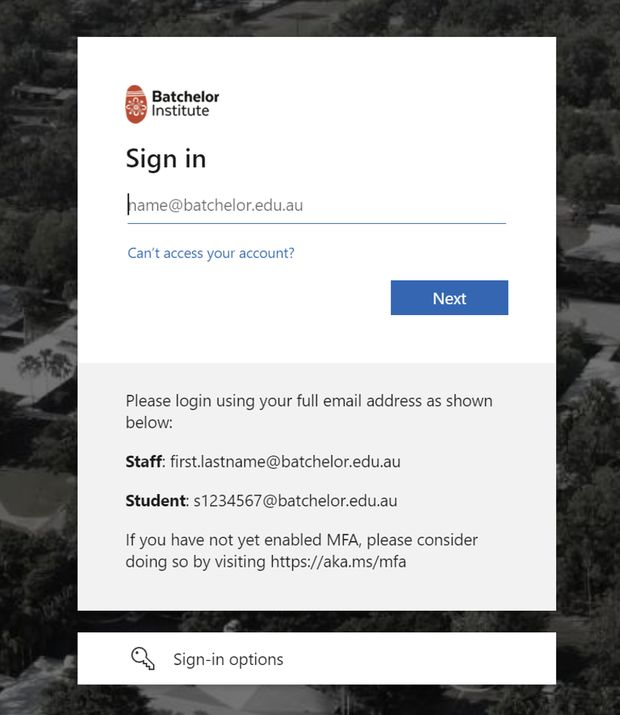
Seeing two sign-in options instead? If you reach Canvas another way, you may land on a screen offering two ways to sign in. Always choose the second one, marked with the Microsoft logo. The email and Canvas password option is not used for Batchelor student accounts.
2. Enter your full email address
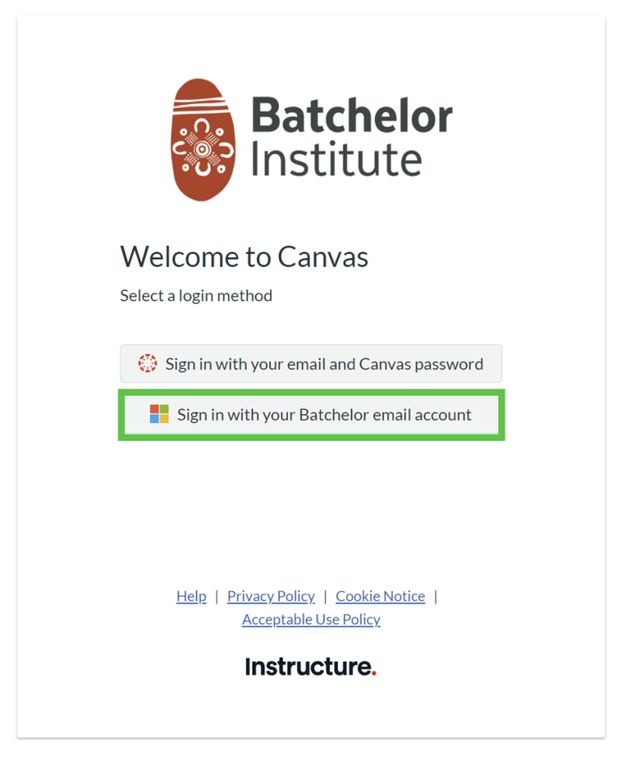
Type the whole address, not just the number, then select Next and enter your password.
Students: s1234567@batchelor.edu.au
3. Tell your lecturer you have signed in
Your Canvas account is created the moment this first sign-in succeeds. Your dashboard may look empty — that is normal. Send your lecturer a short message with the email address you used, so they can add you to your units.
Nothing on your dashboard yet? That is normal. Your units will not appear until your lecturer adds you. Once they do, you will get a course invitation — accept it and the unit appears on your dashboard.
Sign in with your own email
Some Vocational Education and Training (VET) students do not get a Batchelor student email address. If that is you, your lecturer sets up your access instead, and you choose your own Canvas password. Higher Education (HE) students always have a Batchelor address, so this pathway is not for you.
How your account gets created
- You give your lecturer the email address you want to use.
- Your lecturer adds that address to your unit in Canvas.
- Canvas emails you an invitation to join.
- You open the invitation and set your own password.
Choose an email address you check often and expect to keep. It becomes your Canvas username, and every notification from your unit goes to it.
1. Give your lecturer your email address
Write it down or send it in a message so there is no confusion over spelling. A single typo means the invitation goes to the wrong place, and nothing will arrive.
2. Look for the invitation email from Canvas
The email comes from Canvas, not from your lecturer, so it may not look like the messages you usually get from the Institute.
- Check your junk or spam folder if nothing arrives within a day.
- The sender address ends in instructure.com, the company that runs Canvas.
- Mark it as safe, or not junk, so future notifications reach your inbox.
3. Open the invitation and set your password
Select the link in the email. Canvas asks you to confirm your name and choose a password. Pick something you will remember — this password is yours to manage, and nobody at the Institute can look it up for you. Accept the invitation and your unit appears on your dashboard.
4. Signing in from then on
Go to the Canvas sign-in page for email and password accounts. Bookmark it — it takes you straight to the right box.
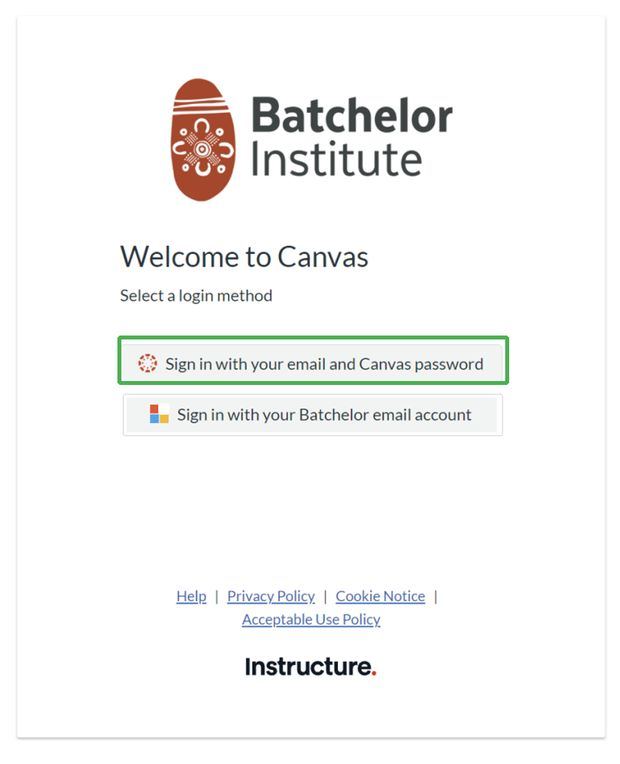
Seeing two sign-in options instead? If you reach Canvas another way, choose the first option, Sign in with your email and Canvas password. The Microsoft option only works for people who have a Batchelor email address.
If you forget your password
On the Canvas sign-in page, select Forgot Password? and enter your email address. Canvas sends a reset link to that address. This is the only way to reset it, so check your junk folder if the email does not appear.
No units on your dashboard yet? Your account exists but you have not been added to a unit, or the invitation is still waiting to be accepted. Contact your lecturer and confirm which email address they used.
Trouble signing in?
Your lecturer is the first person to contact about joining a unit, since they control who is added. For problems with your email or your password, contact the IT Helpdesk.
| help.desk@batchelor.edu.au | |
| Phone | (08) 8939 7116 |
| Hours | Monday to Friday, 8:30 am to 4:00 pm ACST |
Do not reply to the automated account emails. They are sent from an address nobody monitors, so replies will not reach anyone. Use the helpdesk contacts above instead.